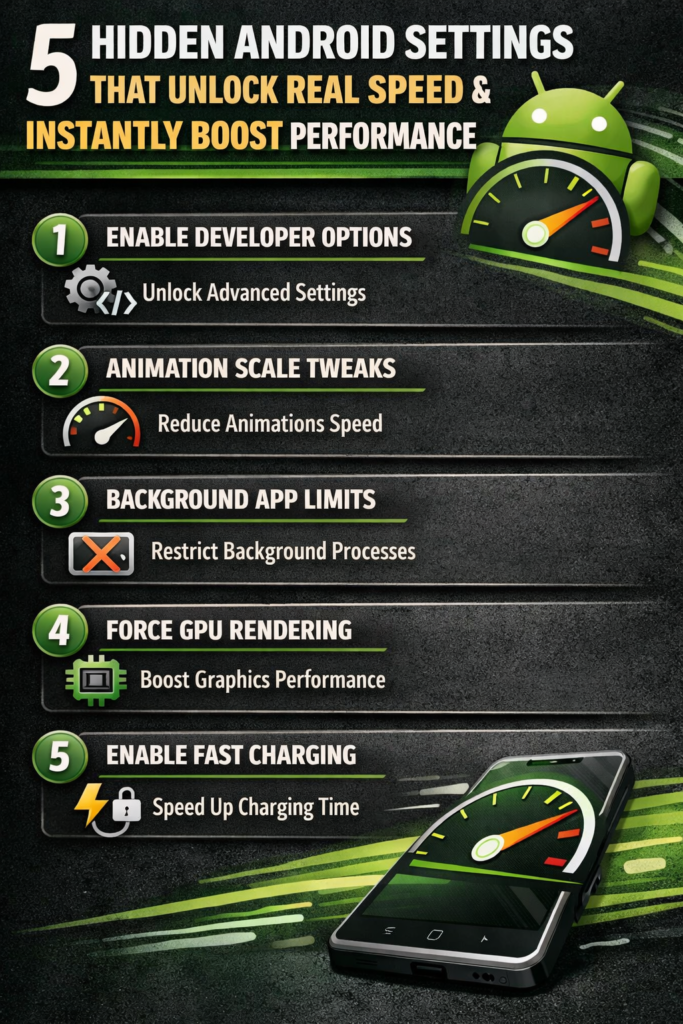
Let’s be honest: that buttery-smooth speed your Android phone had on day one never seems to last. Over time, it’s replaced by frustrating lag, stuttering animations, and apps that take forever to open. Before you resign yourself to a factory reset or start shopping for a new phone, know this—your device likely has plenty of untapped power waiting to be unleashed.5 Hidden Android Settings That Unlock Real Speed & Instantly Boost Performance
The secret lies not in dubious “phone booster” apps (which often make problems worse), but in hidden, built-in Android settings. These are tools placed by Google and device manufacturers for advanced users, buried under layers of menus. Adjusting them can reclaim lost performance, often instantly.
Here are 5 hidden Android settings that act like a turbocharger for your phone, complete with detailed, step-by-step instructions on how to use them safely.
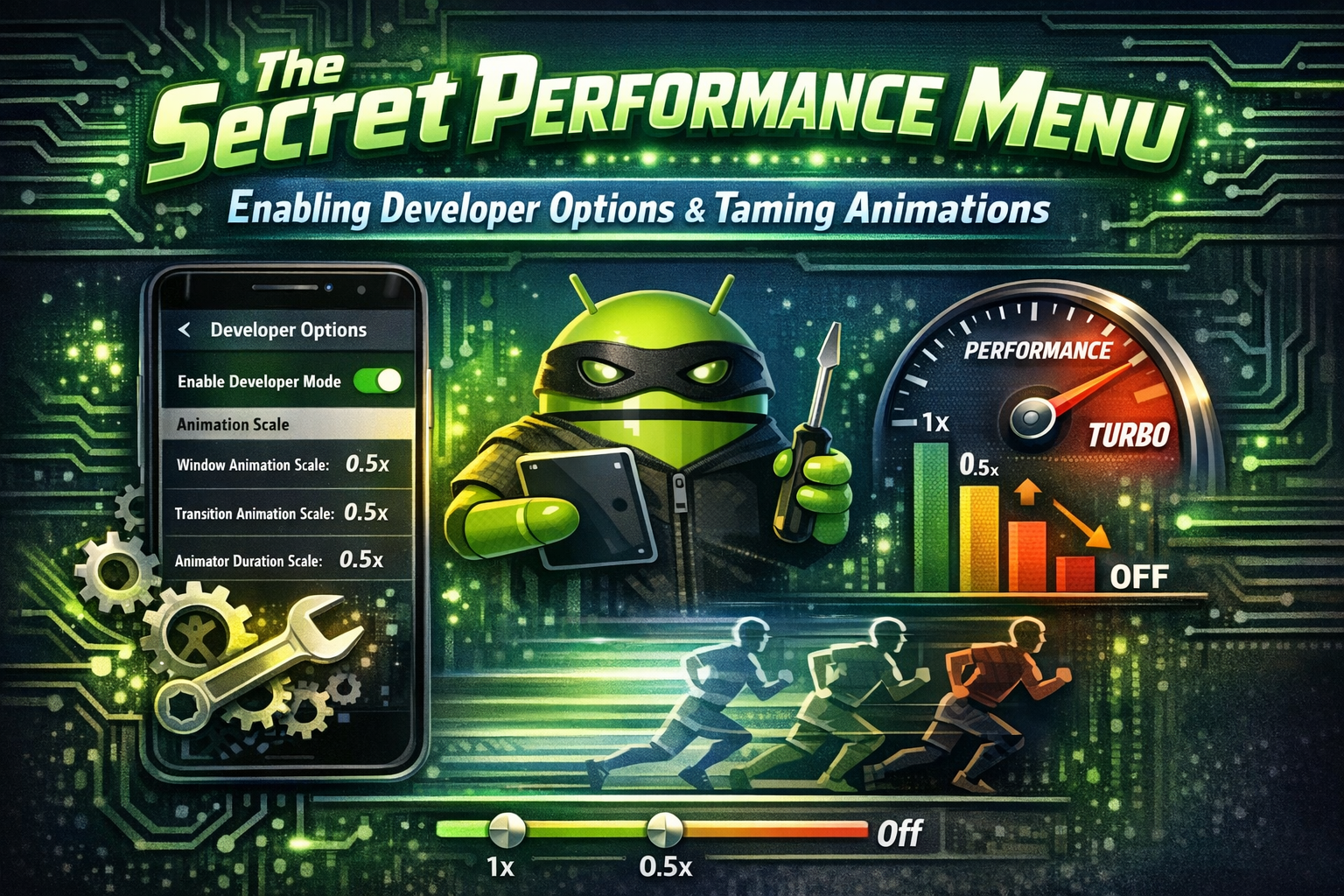
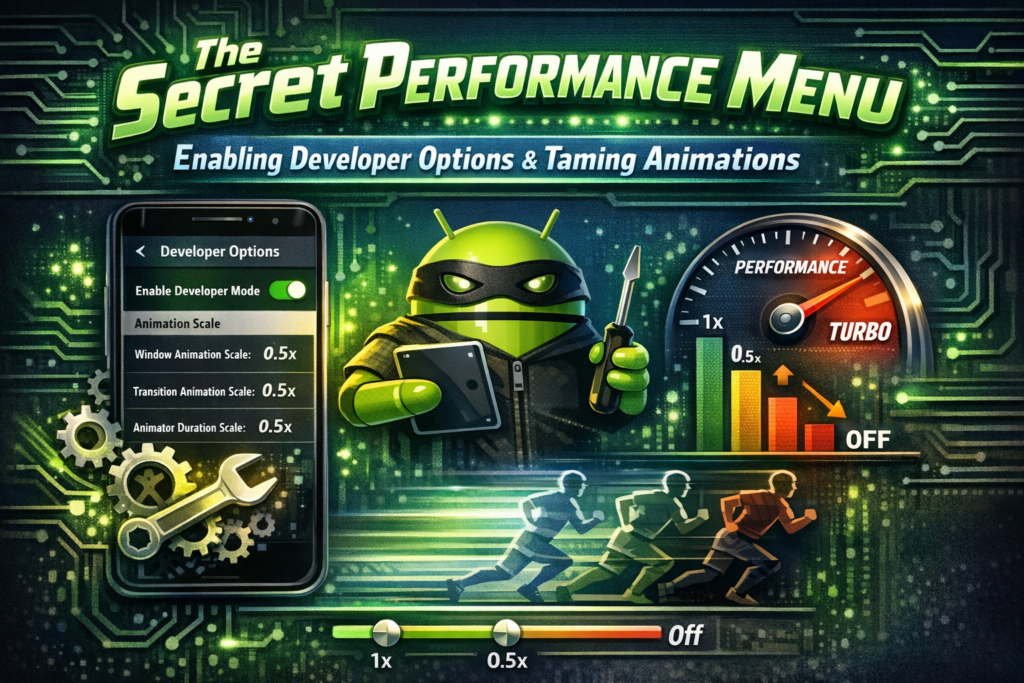
1. The Secret Performance Menu: Enabling Developer Options & Taming Animations
This is the motherlode of hidden settings. Developer Options is a menu packed with powerful tools meant for app developers, but it holds the keys to making your phone feel dramatically faster.
How to Unlock It:
- Go to Settings > About Phone.
- Find Build Number (it might be under “Software Information”).
- Tap on Build Number 7 times quickly. You’ll see a countdown (“You are 4 steps away…”) and then a message: “You are now a developer!”
The Speed-Boosting Tweaks Inside:
- Window Animation Scale, Transition Animation Scale, Animator Duration Scale:
- Location: Settings > System > Developer Options > Drawing section (or near the bottom).
- The Problem: Those elegant fade-ins, sliding menus, and zooming effects? They’re animations that make Android feel polished but add precious milliseconds to every action. On a slower phone, these can feel like dragging through mud.
- The Fix: Tap on each of these three settings. Change them from
1xto.5x(halving the animation speed). For an even more instant, raw-speed feel, you can set them toAnimation off. - The Instant Result: Apps open instantly. Switching between tasks is immediate. The phone no longer feels like it’s “thinking” before it acts. It’s the single most effective speed tweak you can make.
- Background Process Limit:
- Location: Developer Options > Apps section (or near the bottom).
- The Problem: Android is designed to keep apps in memory for quick switching. Too many apps running in the background can hog RAM, leaving little for your current task, causing slowdowns and reloads.
- The Fix: Tap “Background process limit.” Choose “At most 3 processes” or “At most 4 processes.”
- The Instant Result: The system aggressively limits background clutter, freeing up RAM for what you’re actually doing. Performance in your foreground app improves. (Note: This may cause some apps like email to sync less frequently in the background).
- Disable HW Overlays & Force GPU Rendering (Advanced):
- Location: Developer Options > Hardware accelerated rendering.
- The Problem: Your phone’s CPU and GPU share the work of drawing your screen. Sometimes, this handoff can cause minor hiccups, especially in complex apps.
- The Fix: Enable “Force GPU rendering” (makes the GPU handle all 2D drawing, often smoother). Also, enable “Disable HW overlays” (lets the GPU composite everything in one pass). Warning: This can slightly increase battery usage on older devices.
- The Instant Result: Smoother scrolling in heavy apps like Facebook or Chrome, and potentially fewer graphical glitches.
2. Declutter the Brain: Managing RAM & Stopping Bloatware Autostart
Your phone’s Random Access Memory (RAM) is its short-term workspace. When it’s full, the system struggles, leading to lag. Many pre-installed apps (bloatware) automatically start and run in the background, stealing this precious resource.
How to See What’s Really Running:
- First, enable Developer Options (see above).
- Go to Developer Options > Running Services (or “Processes” depending on your Android version).
- Here, you see exactly what’s using RAM in real-time. You’ll often be shocked by the number of system and manufacturer apps running that you never use.
The Nuclear Option for Bloatware (Without Root):
You can’t always delete bloatware, but you can disable it, which stops it from running, updating, or appearing in your app drawer.
- Go to Settings > Apps & Notifications > See all apps.
- Find a suspicious pre-installed app (e.g., a manufacturer’s “Music” app you don’t use, a carrier’s “TV” service).
- Tap on it. If the “Disable” button is active (not grayed out), tap it. A warning will appear—confirm. The app is now frozen. It won’t run, won’t use RAM, and won’t bother you.
The Hidden Autostart Manager (Common on Xiaomi, Huawei, Oppo, Vivo):
Chinese OEM skins are notorious for aggressive background management, but they also give you control.
- Find it: Look in Settings for “Autostart,” “Startup Manager,” or “Launch” (often in “Apps” or “Battery” sections).
- The Fix: Go through the list and disable autostart for every app that doesn’t absolutely need it (e.g., you can keep WhatsApp or your messaging app, but disable Games, Shopping apps, Utilities you rarely use).
- The Instant Result: Your phone boots faster. More RAM is available from the moment you unlock, leading to a consistently snappier experience as background clutter is prevented from ever starting.
3. The Graphics Throttle: Adjusting or Disabling Per-App Performance Profiles
Many modern phones, especially gaming-focused ones, have a hidden feature that can throttle performance per app to save battery. This is a disaster for speed. Your phone might be artificially slowing down your social media or browser app without you knowing.
How to Find It (Varies by Brand):
- Samsung (Game Booster/Perf Z): Go to Settings > Battery and device care > Battery > More battery settings. Look for “Performance profile.” Switch to “High performance” or “Standard” (avoid Light). Also, in Settings > Advanced features > Game Booster > Labs, ensure “Alternate game performance management” is ON for less throttling in games.
- OnePlus/OPPO (Performance Mode): Go to Settings > Battery > High performance mode. Turn it ON for a global boost. Also check Settings > Special features > Games > Game Mode for per-app settings.
- Google Pixel (Battery Saver Throttle): Understand that Battery Saver (even if slightly on from Adaptive Battery) aggressively throttles CPU speed. Go to Settings > Battery and ensure Battery Saver is OFF for maximum speed. You can also long-press the Battery Saver quick-setting tile to disable it “Until next charge.”
- The Universal Method: Search in your Settings app for terms like “Performance,” “Optimize,” “Boost,” “Mode.”
The Instant Result: By ensuring your phone isn’t in a battery-saving or throttled state, you allow apps, especially games and camera apps, to run at the processor’s full potential, eliminating unexplained slowdowns during critical tasks.
4. Freeing the File System: The Hidden “Cached Data” Cleaner & Storage Smarts
Storage isn’t just for photos. When your internal storage is nearly full (above 85-90%), the phone’s file system has no room to breathe. Writing and reading data becomes slow, which cripples overall performance. Furthermore, cached data, while designed to help, can grow corrupt and massive.
The Hidden “Cached Data” Nuclear Button:
This is different from clearing an individual app’s cache.
- Go to Settings > Storage.
- Look at the breakdown. You’ll see “Cached data” listed.
- Tap on it. A prompt will appear asking if you want to clear cached data for all apps. Confirm.
- You can instantly free up several gigabytes of space. This data will rebuild as needed, but it often removes corrupt files that were causing slowdowns.
Enforcing Storage Hygiene:
- Use the “Files by Google” App: It’s pre-installed on many phones and is excellent. It proactively finds and suggests the deletion of junk files, duplicate files, and unused apps.
- Check “Other” or “Miscellaneous”: In your storage breakdown, a bloated “Other” category can be old app files, system backups, and downloads. Use a file manager to manually clean your Download folder.
- The 15% Rule: For optimal performance, always keep at least 15% of your internal storage free. This gives the file system the overhead it needs to manage data efficiently.
The Instant Result: Clearing system-wide cache and freeing storage space reduces file system strain. Operations like installing apps, saving photos, and even booting up become noticeably faster. It’s like clearing a traffic jam on your phone’s data highway.
5. The Ultimate Refresh: Reducing Display Refresh Rate (A Counter-Intuitive Power Saver)
This one seems backward. High refresh rate displays (90Hz, 120Hz) are marketed for smoothness. And they are! But on many mid-range phones, or on older flagship batteries, driving that high refresh rate is a massive drain on system resources and battery.
When the battery is low or the processor is hot, the system may throttle everything to keep the screen running smoothly. By taking manual control, you free up those resources.
How to Find It:
- Standard: Look in Settings > Display > Refresh rate or Motion smoothness.
- Samsung: Settings > Display > Motion smoothness. Choose “Standard” (60Hz) instead of “Adaptive” or “High.”
- OnePlus/OPPO: Settings > Display & Brightness > Screen refresh rate. Choose “Standard” (60Hz).
- Google Pixel: Settings > Display > Smooth display. Toggle it OFF.
Why This Boosts Speed: The GPU and CPU have to work significantly less hard to render frames at 60Hz vs 120Hz. The power saved is substantial. This prevents thermal throttling (the phone getting hot and slowing down) and reduces the background battery drain that triggers aggressive battery-saving throttling elsewhere in the system. You trade ultra-smooth scrolling for a more consistently fast and responsive system overall, with better battery life to boot.
Putting It All Together: A 10-Minute Speed Optimization Routine
- Enable Developer Options. (1 min)
- Reduce all three animation scales to
.5xorOff. (1 min) - Visit “Running Services” to identify RAM hogs. (2 min)
- Disable or Uninstall unused bloatware. (3 min)
- Find your Performance/Battery profile and set it to High Performance/Standard. (1 min)
- Go to Storage and clear system-wide Cached Data. (1 min)
- Check your storage and ensure you have >15% free space. (1 min)
- Consider your refresh rate—switch to 60Hz if you need raw performance/battery. (1 min)
Final Warning & Best Practices:
- One Change at a Time: If you experience instability, revert the last change you made.
- Developer Options are Powerful: Don’t toggle things you don’t understand. Stick to the settings outlined here.
- Reboot: After making these changes, a simple reboot helps the system re-initialize with the new settings in place.
You don’t need to be a tech expert to revive a slow Android phone. These hidden settings are powerful levers, built into the system, waiting for you to pull them. By taking control of animations, background processes, performance profiles, storage, and display settings, you’re not just applying a quick fix—you’re fundamentally changing how your phone allocates its resources. The result is a device that feels closer to its original, snappy self, giving you a faster, more responsive experience instantly, and saving you money and the hassle of a premature upgrade. Now, go and reclaim your phone’s speed.