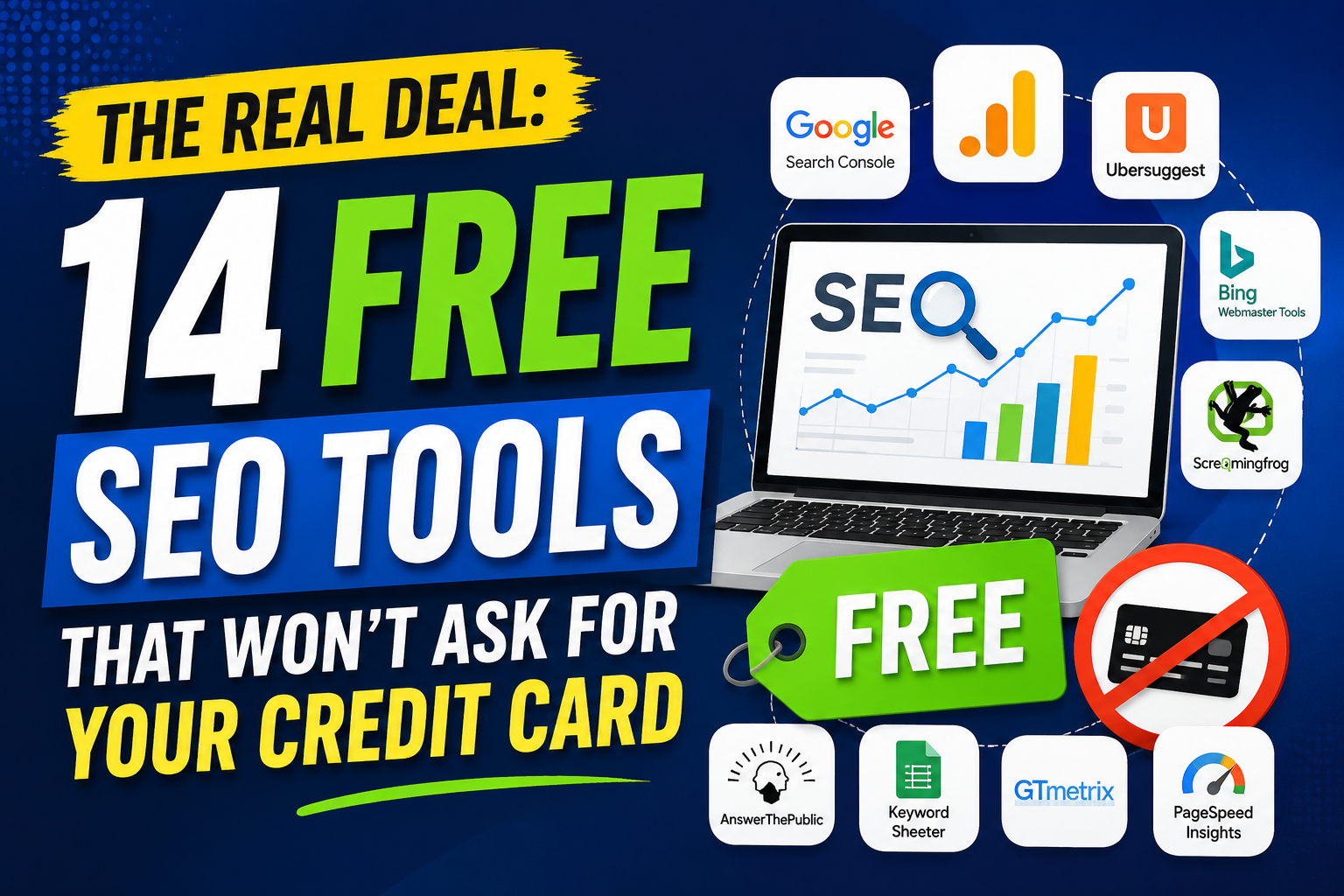
The Real Deal: 14 Free SEO Tools That Won’t Ask for Your Credit Card Let me tell you something that nobody in the fancy SEO courses wants to admit. You do not need to spend a thousand dollars a month on software to rank on Google. I know that sounds like a lie. The tool companies spend millions on ads telling you that their $99 monthly plan is the “entry level.” But I have been doing this since 2016, and I have ranked sites for plumbing companies, vegan bakeries, and even a guy who sold custom birdhouses. I never paid for a subscription until I was already making money.
The secret is that free SEO tools are good enough for 90% of the work. You just have to know which ones to use and how to get around their limits. That is what I am going to show you here. No fluff. No “sign up for my newsletter” traps. Just a list of tools I have in my bookmarks folder right now.
Before we start, let me give you one piece of honest advice. Free tools have limits. You might only get ten searches per day. You might have to watch a few ads. You might need to use three different tools to do what one paid tool does. That is fine. You are trading time for money. And right now, time is cheaper than a Semrush subscription.
Part One: Finding Keywords Without Breaking the Bank
Keywords are the foundation. If you pick the wrong words to target, you could write a hundred amazing articles and nobody will ever see them. I learned this the hard way when I spent two weeks writing a guide on “antique teapot restoration” only to find out that exactly twelve people search for that every month.
1. Google Keyword Planner (The boring choice that works)
Yeah, I know. Everyone mentions this one. But most people use it wrong. They log in, type a word, see a bunch of numbers, and close the tab. You need to be smarter than that.
Here is how you actually use Keyword Planner for free. First, you need a Google Ads account. Just go sign up. You do not have to run any ads. You do not have to add a payment method right away. Once you are in, ignore the campaign setup stuff and look for “Keyword Planner” under the tools menu.
When you enter a seed keyword, do not just look at the “Avg monthly searches” column. That number is usually a range, and Google fuzzes it on purpose. Instead, look at the “Top of page bid (low range)” column. This tells you how much advertisers are willing to pay for that click. If the bid is over a dollar, that keyword is valuable. People are trying to buy something or solve a serious problem. If the bid is ten cents, it is probably informational or low intent.
The other trick is to use the “Start with a website” option. Type in the URL of a competitor. Google will show you all the keywords that site is ranking for. It is not perfect, and the list will be limited, but for free? That is gold. I found three high-value keywords for a client just by plugging in a bigger competitor’s homepage.
2. AnswerThePublic (The question finder)
This tool used to be completely free. Now it limits you to a few searches per day. But those few searches are still incredibly useful because of how the data is presented.
AnswerThePublic takes your keyword and scrapes Google’s autocomplete and “people also ask” boxes. Then it organizes everything into questions: who, what, where, when, why, and how. You get a beautiful visual map of what people are actually asking about your topic.
Let me give you an example. If you type in “coffee maker,” AnswerThePublic will show you questions like “coffee maker not turning on” or “coffee maker descaling solution” or “coffee maker under 50 dollars.” Each one of those questions is a potential blog post or video. Better yet, those questions are what real people type into Google when they have a problem.
The free version lets you download the results as a CSV file. Do one search per day for a week, and you will have hundreds of content ideas. I keep a spreadsheet where I dump all these questions, and whenever I run out of things to write about, I go back to it.
3. Ubersuggest (The beginner’s workhorse)
Neil Patel’s tool gets a lot of hate from SEO snobs. I get it. Neil is everywhere. His emails are constant. But Ubersuggest has a genuinely useful free tier that gives you three searches per day. Three might not sound like much, but if you plan your work, that is fifteen searches per week.
What makes Ubersuggest different is the “Content Ideas” tab. Most keyword tools just give you numbers. Ubersuggest shows you the most shared articles for your keyword on social media. This tells you what format works. Is the top result a listicle? A how-to guide? A video? You can see exactly what got engagement, and then you can write something better.
I also like the “Keyword Difficulty” score. Is it accurate? Not really. But it gives you a relative sense. If Ubersuggest says a keyword has a difficulty of 80, forget about it. You are not outranking the big dogs with a new site. If it says 30 or below, you have a fighting chance. That is all you need to know.
4. Keyword Surfer (The Chrome extension hack)
This is my favorite tool on the whole list because it works right inside Google search results. You install the Chrome extension, and then whenever you search for anything on Google, a little box appears on the side showing you search volume, cost per click, and related keywords.
No copying and pasting. No opening another tab. You just do your normal research, and the data appears next to the results.
The best feature is the “related keywords” list at the bottom. When you are trying to think of variations of your main keyword, this saves you hours of brainstorming. I also love that Keyword Surfer shows you the estimated word count of every page on the first page of Google. If you see that all the top ten results have 2,000 words, do not write a 500-word article. You will not rank. It is that simple.
The only downside is that it only works on desktop Chrome. But if you are doing serious SEO work, you are probably on a laptop anyway.
Part Two: Technical SEO Stuff That Sounds Scary But Isn’t
Technical SEO is where beginners panic. They hear words like “crawl budget” and “canonical tags” and “schema markup” and they want to hide under a desk. I was the same way. But here is the truth: most of technical SEO is just checking for broken links, slow pages, and duplicate content. You can do all of that for free.
5. Google Search Console (Non-negotiable)
If you only use one tool from this entire list, make it this one. Google Search Console is free. It is run by Google. And it tells you exactly how Google sees your website. This is not a third party guessing. This is the source.
You need to verify your site ownership, which sounds technical but is usually just adding a small HTML file to your server or updating a DNS record. If you use WordPress, there is a plugin called “Site Kit by Google” that does the whole setup in three clicks.
Once you are in, here is what you should look at first. Go to the “Performance” report. This shows you every search query that brought your site clicks, your average position, and your click-through rate. Sort by impressions. Look for keywords where you have lots of impressions but very few clicks. That means you are showing up on Google, but nobody is clicking. You probably need to rewrite your title tag or meta description.
Next, go to “Page Experience” and “Core Web Vitals.” These tell you if your site is slow or glitchy on mobile phones. Google cares about this a lot. If you see red marks, you need to fix your images or get better hosting. I know, hosting costs money. But even cheap hosting can pass Core Web Vitals if you compress your images and use a caching plugin.
The “Coverage” report shows you which of your pages Google could not index. Maybe you accidentally told Google not to show a page. Maybe your page takes too long to load. Maybe there is a server error. Whatever it is, this report shows you exactly what the problem is. You do not need to guess.
I check Search Console every Monday morning. It takes ten minutes. And every time, I find something I can fix.
6. Screaming Frog SEO Spider (Free for up to 500 URLs)
This tool looks intimidating. When you open it, you see a bunch of tabs and buttons and a big empty space. But do not close it. Screaming Frog is the best way to find broken links, duplicate meta descriptions, and missing alt text on your images.
The free version lets you crawl up to 500 URLs. For a small site, that is plenty. You put in your domain, hit start, and the tool goes through every page on your site like a search engine would. When it is done, you can see a list of every single page, every image, every script, and every link.
The two reports I use most are the “Response Codes” report and the “Page Titles” report. Response codes show you if any of your pages are giving a 404 error (page not found). If you have old pages that people might be linking to, and they are gone, you want to redirect them. The Page Titles report shows you if you accidentally used the same title tag on two different pages. That confuses Google.
You do not need to run Screaming Frog every day. Once a month is fine. Just clean up the broken links and duplicate titles, and your technical SEO will be better than 80% of small business sites.
7. PageSpeed Insights (The speed tester)
This is another Google tool. You put in a URL, and it gives you a score from 0 to 100 for both mobile and desktop. Then it tells you exactly what to fix.
The problem is that the recommendations can be technical. It might say “eliminate render-blocking resources” or “reduce unused JavaScript.” If you are not a developer, that sounds like nonsense. But look at the “Opportunities” section. It lists things like “properly size images” and “serve images in next-gen formats.” Those you can actually do. Resize your images before you upload them. Use a tool like Squoosh to convert them to WebP format. That alone will boost your score by twenty points.
Do not obsess over getting a perfect 100. Nobody gets 100. Even Google’s own pages score in the 70s and 80s. Just get your score above 50 on mobile, and you are fine. If you are below 30, you have a real problem that is probably your hosting. Move to a faster host or switch to a lighter theme.
8. Mobile-Friendly Test (The quick check)
Before you do anything else, type your website into this tool. Google will show you a screenshot of what your site looks like on a phone and tell you if there are any issues. The most common issue is text that is too small to read without zooming, or buttons that are too close together to tap.
If you fail this test, fix it immediately. More than half of all searches happen on phones. Google uses the mobile version of your site for ranking. If your site is hard to use on a phone, you will not rank. It is that simple.
Part Three: Checking What Your Competition Is Doing
You do not need to spy on your competitors in a creepy way. You just need to see what is working for them so you can do it better. These tools let you look under the hood of any website.
9. MozBar (The instant metric checker)
MozBar is another Chrome extension. Once you install it, you see a toolbar at the top of your browser whenever you visit a page. It shows you the Domain Authority of that site, the page authority, and the number of backlinks.
Domain Authority is Moz’s made-up metric, but it is useful for comparison. If you have a DA of 15 and the site ranking #1 for your keyword has a DA of 70, you are not going to outrank them anytime soon. Pick a different keyword. If the site in the #1 spot has a DA of 18, that is a target. You can beat that.
The free version of MozBar gives you one metric per page and limits how many link metrics you see. But for quick competitor checks, it is perfect. I use it to gauge whether a keyword is worth chasing before I write a single word.
10. SEO Minion (The all-in-one helper)
This extension is less famous than MozBar, but it does more useful things. You right-click on any page, and you can check the following: broken links on that page, the heading structure (H1, H2, H3), and the rendered HTML. There is also a “Google Search Preview” feature that shows you exactly what your page will look like in the search results.
The broken link checker is especially handy. If you write a blog post that links to external sources, you can run SEO Minion and see if any of those links are dead. Dead links look bad to Google. They also frustrate your readers.
11. SimilarWeb (The traffic guesser)
SimilarWeb is not accurate. I want to be clear about that. It guesses traffic based on panels and extensions and other indirect data. But it is useful for one thing: seeing which channels send traffic to a competitor.
Go to SimilarWeb’s free version, type in a competitor’s domain, and scroll down to the “Traffic Sources” section. You will see a percentage breakdown: direct, search, social, email, referrals, and display ads. If a competitor gets 80% of their traffic from search, they are doing great SEO. If they get 60% from social, they are probably a brand with a big following. You need to know this because it tells you how to compete. If they are dominating through social, you probably cannot beat them there unless you have a massive budget. If they are dominating through search, you can outrank them with better content.
Again, the numbers are wrong. But the trends are usually right. If SimilarWeb says a competitor gets mostly search traffic, you can trust that.

Part Four: Content Optimization Without the AI Crap
I am not a fan of AI writing tools. They produce bland, forgettable text that all sounds the same. But you can use free tools to optimize the content you write yourself. That is the key. You write it. The tools just help you polish it.
12. Grammarly (The free version)
Everyone knows Grammarly. The free version checks for spelling mistakes, punctuation errors, and overly complicated sentences. That is all you really need. The paid version adds tone suggestions and plagiarism detection, but you do not need that for SEO.
What matters for SEO is clarity. Google can tell when people bounce back to the search results because your content was hard to read. Grammarly helps you write shorter sentences, use active voice, and avoid jargon. I run every blog post through the free Grammarly browser extension before I hit publish. It catches the dumb mistakes that slip through when you have been staring at the same paragraph for an hour.
13. Hemingway Editor (The readability fix)
Hemingway is a free web app. You paste your text in, and it highlights sentences that are too long, passive voice, adverbs, and phrases that have simpler alternatives. The goal is to get your content to a Grade 6 reading level. That does not mean you are writing for children. It means you are writing clearly. Most adults read at an 8th grade level. If you write at a college level, you lose people.
Use Hemingway to break up long paragraphs. On the web, walls of text are terrifying. Nobody reads them. People scan. They look for bold text, bullet points, and short paragraphs. Hemingway helps you spot the places where you got too wordy.
14. Rank Math’s SEO Analysis (For WordPress users)
If you use WordPress, Rank Math has a free version that includes an SEO analysis tool. You do not need to use Rank Math as your main SEO plugin. You can use Yoast or SEOPress or anything else. But you can install Rank Math, run the analysis on a draft, and then uninstall it if you want. The free analysis checks for keyword usage in headings, image alt text, meta description length, and internal links.
The most useful part is the “Link Suggestions” feature. Rank Math looks at your content and suggests other pages on your site that you should link to. Internal linking is one of the easiest ways to boost SEO, and most people forget to do it. This tool reminds you.
Part Five: Putting It All Together Without Losing Your Mind
You have fourteen tools now. That is too many to use every day. Here is the simple weekly routine that I follow, and you can steal it.
Monday morning (30 minutes): Open Google Search Console. Look at the Performance report. Find any keywords where your average position is between 8 and 15. Those are the low-hanging fruit. Go to those pages and add a paragraph or update the title tag.
Tuesday (20 minutes): Pick one competitor. Run them through Ubersuggest (free searches) and SimilarWeb. Write down three keywords they rank for that you do not. Add those to your content calendar.
Wednesday (15 minutes): Open Screaming Frog and crawl your own site (if you have under 500 pages). Look for 404 errors and duplicate title tags. Fix the easy ones.
Thursday (writing day): Use AnswerThePublic to find questions about your topic. Write a post that answers those questions directly. Use Grammarly and Hemingway as you go.
Friday (30 minutes): Before you publish, run the draft through Keyword Surfer to check the word count against the top ten results. Make your post at least as long as theirs. Then run Rank Math’s analysis for internal link suggestions.
That is it. That is the whole system. You do not need expensive tools. You need consistency and a willingness to do the boring work. SEO is not magic. It is not a mystery. It is just research, writing, and fixing broken stuff. These free tools give you everything you need to do all three.