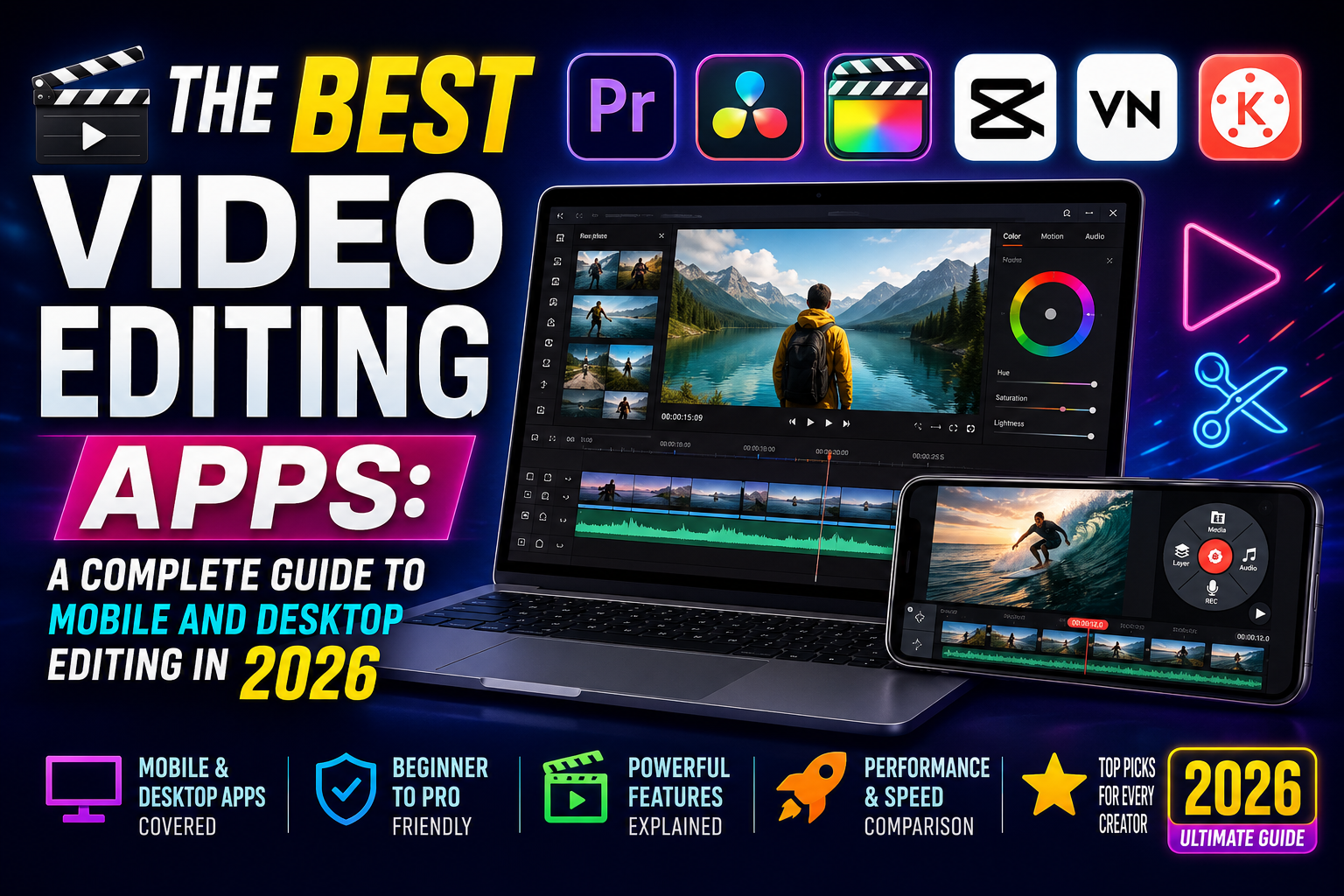
The Best Video Editing Apps: A Complete Guide to Mobile and Desktop Editing in 2026 Look, I’ve spent the better part of fifteen years staring at timelines, wrestling with render settings, and watching progress bars crawl across my screen at two in the morning. I’ve edited on everything from clunky Windows Movie Maker back in high school to professional suites that cost more than my first car. And here’s what nobody tells you when you’re starting out: the “best” video editing app isn’t the one with the most features. It’s the one that doesn’t make you want throw your computer out a window at 1 AM.
So let me walk you through the actual best video editing applications out there right now, based on real-world use, not marketing hype. I’ll tell you what works, what doesn’t, and where you should actually spend your money.
Understanding What You Actually Need
Before we dive into specific apps, let me save you some time and frustration. The biggest mistake people make is downloading something like DaVinci Resolve when all they need is CapCut, or paying for Adobe Premiere when iMovie would do everything they need. Ask yourself three honest questions:
First, what are you actually editing? If you’re cutting together family vacation footage or TikTok clips, you don’t need Hollywood grade color correction tools. If you’re making a short film or professional client work, you absolutely do.
Second, what hardware are you using? A three year old iPad is going to handle apps differently than a brand new M3 MacBook Pro. Be realistic about what your device can actually process.
Third, how much time do you want to spend learning? Some apps take twenty minutes to figure out. Some take twenty hours just to understand the interface. Both are valid, but you need to know which camp you fall into.
The Mobile Champions: Editing From Your Phone
Let me be blunt about something that still surprises people: mobile video editing has gotten ridiculously good. Like, professionally good. I’ve seen short films edited entirely on iPhones that I genuinely thought were cut on thousand dollar rigs.
CapCut: The Social Media Powerhouse
ByteDance, the company behind TikTok, created CapCut, and honestly, it’s embarrassing how good this free app is. I remember scoffing when someone first recommended it to me. “A free video editor from a social media company? No thanks.” I was wrong. Really wrong.
CapCut excels at exactly what most people need: quick, stylish edits with minimal hassle. The auto-captioning feature alone is worth the download. You know those perfectly timed captions you see on TikTok and Reels? CapCut does them automatically in seconds. No more manually typing out every word and syncing it to the timeline. The app analyzes your audio and places captions with surprisingly accurate timing.
The templates deserve special mention here. I’ve seen creators build entire followings by dropping their footage into CapCut templates and letting the app handle transitions, effects, and pacing. Does this count as “real” editing? Who cares. The results look good and the engagement speaks for itself.
But CapCut isn’t perfect. The free version includes watermarks unless you use the web-based version or pay for Pro. And while the mobile app is excellent, the desktop version feels clunkier than its competitors. There’s also the ByteDance data privacy question, which matters to some people more than others.
The beauty effects are frankly unsettling in how good they are. You can smooth skin, reshape faces, and adjust body proportions to the point where the person in the video barely resembles reality. Use these features wisely, or don’t use them at all.
InShot: The Reliable Workhorse
Before CapCut took over the world, InShot was the go-to for mobile editing, and it’s still excellent. Where CapCut feels like it’s trying to be trendy and flashy, InShot feels like it was designed by people who actually edit videos.
The interface makes sense. Everything is where you’d expect it to be. The timeline zooms and scrolls smoothly. Trimming is precise. Adding music is simple. These sound like bare minimum features, but you’d be surprised how many apps mess them up.
InShot really shines with its aspect ratio tools. You can switch between vertical for TikTok, square for Instagram feed, horizontal for YouTube, and everything in between, all while adjusting your composition so nothing important gets cropped out. The keyframe animation is surprisingly robust too. You can animate text, stickers, and overlays with pretty fine control.
The downside? InShot has watermarks unless you pay, and the subscription model is annoying. I miss the days of just buying an app outright. But the Pro version unlocks everything, and it’s reasonably priced compared to competitors.
LumaFusion: The Professional’s Mobile Choice
If CapCut and InShot are like having a decent multitool in your pocket, LumaFusion is like having a full workshop. This app costs money upfront, and it’s worth every penny if you’re serious about mobile editing.
LumaFusion gives you six video tracks and six audio tracks. For comparison, most mobile editors give you two or three total. The color correction tools include lift, gamma, gain controls that actually work like professional scopes. You can record voiceover directly into the app with full waveform monitoring. The external drive support means you can edit straight from an SSD connected to your iPad or iPhone.
I’ve used LumaFusion to edit forty minute documentary segments while traveling. No laptop. Just an iPad Pro, an external drive, and a pair of headphones. That’s genuinely remarkable when you think about it.
But here’s the catch: LumaFusion requires you to know what you’re doing. If you’ve never edited video before, the interface will look like a cockpit. The learning curve is real. And at forty or fifty dollars depending on sales, it’s expensive for a mobile app, though laughably cheap compared to desktop alternatives.
Desktop Applications: Where Real Work Gets Done
Mobile apps are great, but when you need to do serious work, you need a desktop. Here’s what actually delivers.
DaVinci Resolve: The King of Free
Let me repeat that because people don’t believe me: DaVinci Resolve is completely free, and it’s one of the most powerful video editors in existence. Not “free for what it is.” Not “good for a free app.” Genuinely world class professional software that happens to cost nothing.
Blackmagic Design makes their money selling hardware like color grading panels and cinema cameras. The software is essentially a loss leader to get people into their ecosystem. That means you get Hollywood grade color correction, professional audio mixing through Fairlight, visual effects through Fusion, and a full editing timeline, all for zero dollars.
The color grading is what originally made DaVinci famous. Hollywood colorists have used DaVinci systems for decades to grade major motion pictures. Those same tools, with ninety five percent of the capability, are in the free version. You can pull keys, track masks, adjust curves, and do things with color that most people don’t even know are possible.
So what’s the catch? Two things. First, DaVinci Resolve is demanding on hardware. You need a decent graphics card, plenty of RAM, and ideally a good processor. Trying to run it on a basic laptop from five years ago will be frustrating. Second, the learning curve is steep. This is not an app you figure out in an afternoon. You will watch tutorials. You will get confused. You will probably give up at least once before it clicks.
The Studio version costs three hundred dollars one time, no subscription. That gets you some additional features like neural engine processing, faster rendering, and support for more codecs. Most people don’t need it. The free version is genuinely sufficient for almost everything.
Adobe Premiere Pro: The Industry Standard
Whether you like Adobe or not, and plenty of people have strong opinions either way, Premiere Pro is the editor you’ll encounter in professional settings. If you want to work at a production company, post house, or agency, you need to know Premiere.
The timeline editing in Premiere is buttery smooth. Trimming, slipping, sliding, and rolling edits feel intuitive in a way that took me years to appreciate. The integration with After Effects, Photoshop, and Audition means you can roundtrip assets without thinking about it. Dynamic link alone saves hours of rendering intermediate files.
The proxy workflow deserves special mention because it’s genuinely excellent. Working with 4K or 6K footage on an underpowered laptop? Premiere creates lower resolution proxy files you edit with, then automatically uses the full resolution footage when you export. It just works.
But here’s the part everyone hates: the subscription. Twenty two dollars a month for the single app, or fifty something for the whole Creative Cloud. Over a few years, that adds up to more than buying Resolve Studio once. And Adobe’s customer support is widely considered terrible. If something breaks, good luck getting actual help.
Premiere also crashes. Less than it used to, but more than Resolve. The autosave feature has saved my work more times than I can count, but it’s frustrating when you’re in a flow state and everything just stops.
Final Cut Pro: Apple’s Sleek Alternative
Final Cut Pro is the smoothest editing experience I’ve ever used. The magnetic timeline is controversial, people either love it or hate it, but once it clicks, going back to traditional track-based editing feels clunky and slow.
Here’s what makes Final Cut different: instead of managing separate video and audio tracks, everything connects magnetically. When you move a clip, the clips after it automatically adjust. The connected clips, like B-roll or sound effects, stay attached to the primary storyline. It sounds confusing, and at first it is, but after a week of using it, traditional editing feels like driving a car with square wheels.
The rendering performance on Apple Silicon Macs is absurd. I’ve exported hour long projects in minutes. Background rendering means your timeline never stutters. The optimization for M1, M2, and M3 chips is Apple at their best, using tight hardware software integration to deliver performance that Windows machines can’t match.
Final Cut costs three hundred dollars, one time purchase. No subscription. That’s becoming increasingly rare and valuable. Apple releases major updates with new features at no additional cost.
The downsides? You need a Mac. That’s it. No Windows version. No iPad version that matches the full desktop experience. And the color correction tools, while good, don’t compete with DaVinci Resolve. The audio tools are fine but not great. Final Cut does editing exceptionally well, and everything else adequately.
The Specialists: Niche Apps Worth Knowing
Sometimes you don’t need a general purpose editor. Sometimes you need something specific.
Filmora
Filmora sits in an interesting middle ground between mobile apps and professional software. More features than iMovie, less intimidating than Premiere. The built in effects, transitions, and titles are genuinely good and easy to apply. The screen recording and text overlay tools are straightforward.
The people I recommend Filmora to are educators, small business owners, and anyone who needs to make decent looking videos without becoming a full time video editor. It’s not for filmmaking, but it’s perfect for YouTube tutorials, product demos, and corporate training videos.
Shotcut
Shotcut is open source and completely free. The interface is ugly, I won’t pretend otherwise, but it works. It handles a massive range of codecs without complaining. You can set keyframes for almost any parameter. It runs on Windows, Mac, and Linux.
The open source nature means development is slower than commercial products, but bugs get fixed. New features appear eventually. If you can’t afford anything else and need something more capable than mobile apps, Shotcut is genuinely impressive for what it is.
VN Editor
VN Editor is the dark horse nobody talks about. It’s free, no watermark, and surprisingly capable. The multi track timeline, keyframe animation, and speed ramping work well. The interface is clean and modern. I genuinely don’t understand how they’re giving this away for free.
But something feels off. The company behind VN is Chinese, and while I don’t want to spread unfounded fears, the lack of clear monetization makes me suspicious. They’re collecting data for something. Whether that matters to you is a personal decision.
Making Your Final Choice
Here’s my honest advice after all these years and all these apps.
If you’re just starting out and making social media content, begin with CapCut. It’s free, it’s powerful enough, and you can learn the basics of pacing, transitions, and audio without overwhelming yourself. Use it until you hit its limits, which might take longer than you expect.
If you’re on a Mac and want something professional without a subscription, get Final Cut Pro. The upfront cost hurts once, then you’re done. The learning curve is real but manageable.
If you want the most powerful free option and don’t mind watching tutorials, get DaVinci Resolve. Just make sure your computer can handle it. Nothing is more frustrating than software constantly stuttering or crashing.
If you’re pursuing professional work in the industry, learn Premiere Pro. I don’t like the subscription either, but it’s what employers and clients expect. Fight that battle after you’re getting paid.
And remember, the best video editing app is the one you actually use. A thousand dollar software suite does nothing if the interface makes you give up. Start simple, make stuff, then upgrade when you genuinely need features you don’t have. That’s the path that works, the path I’ve watched hundreds of creators take from their first shaky phone videos to professional work that genuinely impresses me.